Create PDFs in ASP.NET - getting started with iTextSharp
iTextSharp - Working with Fonts
iTextSharp - Adding Text with Chunks, Phrases and Paragraphs
Lists are generated from the iTextSharp.text.List object. A List is a collection of iTextSharp.text.ListItem objects. Actually, it is an ArrayList of ListItem objects. ListItem inherits from Paragraph (which inherits from Phrase, which inherits from ArrayList), so each item in the list is rendered on a new line. As with their html <ul> and <ol> counterparts, Lists can be UNORDERED or ORDERED (numbered). Diving straight into code, here's how to generate a List:
string path = Server.MapPath("PDFs");
it.Document doc = new it.Document();
try
{
PdfWriter.GetInstance(doc, new FileStream(path + "/Lists.pdf", FileMode.Create));
doc.Open();
it.List list = new it.List(it.List.UNORDERED);
list.Add(new it.ListItem("One"));
list.Add("Two");
list.Add("Three");
list.Add("Four");
list.Add("Five");
it.Paragraph paragraph = new it.Paragraph();
string text = "Lists";
paragraph.Add(text);
doc.Add(paragraph);
doc.Add(list);
}
catch (it.DocumentException dex)
{
Response.Write(dex.Message);
}
catch (IOException ioex)
{
Response.Write(ioex.Message);
}
finally
{
doc.Close();
}
If you are not familiar with the concept, the way that a List or ListItem is referenced in the above code needs explaining. As you can see, "it." is used as a prefix for some objects. If you are coding your PDF generation within an ASP.NET code-behind file, you will probably be working with the default set of namespaces that Visual Stuido references when the aspx.cs file is created. One of those namespaces is System.Web.UI.WebControls, which also includes a ListItem class. That means that attempting to simply add
ListItem li = new ListItem();
to your code will result in a warning of ambiguity. The way to resolve this is to fully reference the ListItem class you are attempting to use by adding its namespace:
iTextSharp.text.ListItem li = new iTextSharp.text.ListItem();
All that extra typing can get very boring, so you can shortcut the namespace by providing an alias to it:
using it = iTextSharp.text;
Now you can use the alias instead.
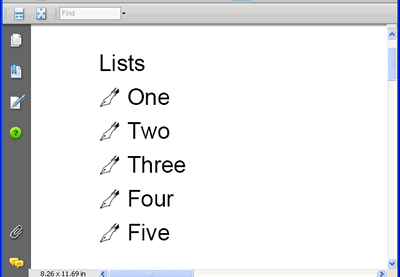
Back to what the code actually does - the first thing is to create a new List object, and to pass in a bool to indicate whether it is an ordered, or numbered list or not. The default is false. The code doesn't do much more except add 5 items to the list. The first is added by creating a new ListItem object, and setting its string value. The second and subsequent items are added directly to the List object as strings. Finally, a Paragraph is created and added to the document, followed by the List being added to the document. The result is this:
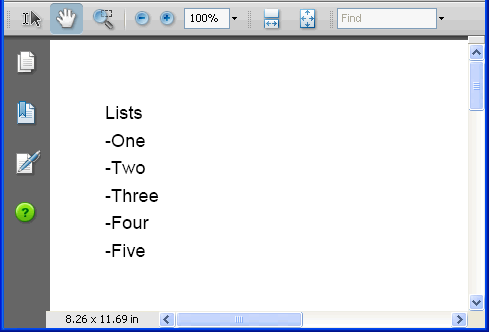
As you can see, each item acts like a Paragraph as promised, in that it occupies a new line. You will also note that the default settings provide a boring list with hyphens as symbols for each ListItem, and none of the usual indentation that you would get if you were using Microsoft Word, for example. iTextSharp provides ways to format the List so that it looks a lot better.
it.List list = new it.List(it.List.UNORDERED, 10f);
list.SetListSymbol("\u2022");
list.IndentationLeft = 30f;
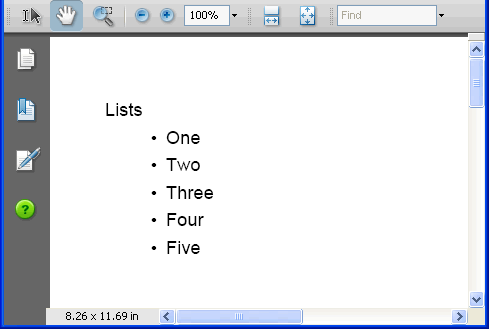
A second argument (float) is passed in to the List constructor, which sets the symbolIndent value at 10 points. This results in the space between the symbol and the item itself being increased. Secondly, the actual symbol is changed to the more traditional bullet point using the setListSymbol() method. Finally, the List is indented 30 points from the left margin of the document. The result looks a little more pleasing:
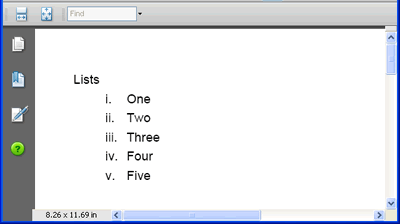
If you like your ordered lists with Roman numerals, you can use the RomanList class:
RomanList romanlist = new RomanList(true, 20);
romanlist.IndentationLeft = 30f;
romanlist.Add("One");
romanlist.Add("Two");
romanlist.Add("Three");
romanlist.Add("Four");
romanlist.Add("Five");
doc.Add(romanlist);
For some odd reason, the symbolIdent value passed into the constructor is an int this time, instead of a float. The first argument is a bool that tells iTextSharp whether you want lowercase symbols or not.
A separate GreekList class supplies list symbols as Greek letters, and two further classes: ZapfDingbatsList and ZapfDingbatsNumberList offer more symbol formatting opportunities as they make use of the ZapfDingBats font. The Greek and Roman lists should never be used for lists that contain more than 24 and 26 items respectively, and the ZapfDingBatsNumberList can only cope with a maximum of 10 items before the numbering runs out and becomes 0.
ZapfDingbatsList zlist = new it.ZapfDingbatsList(49, 15);
zlist.Add("One");
zlist.Add("Two");
zlist.Add("Three");
zlist.Add("Four");
zlist.Add("Five");
doc.Add(zlist);
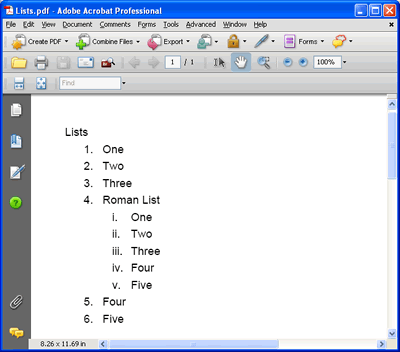
Lists can also be nested. Since the List.Add() method accepts an object, all you need to do is to pass in a valid List() object. The following code creates a RomanList first, then an ordered list. The RomanList is added to the ordered list, and iTextSharp indents the RomanList relative to the ordered list to which it belongs:
RomanList romanlist = new RomanList(true, 20);
romanlist.IndentationLeft = 10f;
romanlist.Add("One");
romanlist.Add("Two");
romanlist.Add("Three");
romanlist.Add("Four");
romanlist.Add("Five");
List list = new List(List.ORDERED, 20f);
list.SetListSymbol("\u2022");
list.IndentationLeft = 20f;
list.Add("One");
list.Add("Two");
list.Add("Three");
list.Add("Roman List");
list.Add(romanlist);
list.Add("Four");
list.Add("Five");
doc.Add(paragraph);
doc.Add(list);